How to use Euclidia Quiz.
A real walkthrough. Click this, paste that, save here. If you have never used a tool like this before, you are in the right place. Most teachers build their first quiz in about 5 minutes.
What you will need.
Two things. That is it.
- A Google account. If you have a school email through Gmail (most schools on Google Workspace do), you already have one. If not, you can make a free Google account at accounts.google.com in about 60 seconds.
- A Canvas account (optional). Only if you want one-click push from this app into your Canvas course. If you do not have Canvas, or do not want to use it, you can still use Euclidia Quiz. We will explain how in Step 5.
You do not have to enter a credit card to look around. The card only comes up once you decide to start the 3-day free trial in Step 2.
Sign in with your Google account.
Open your web browser and go to canvas.euclidiamath.com. You will see a page with the Euclidia Quiz logo and a big gold button that says Sign in with Google.
- Click the Sign in with Google button.
- Google opens its own sign-in window. Pick the Google account you want to use, or type your Gmail address and password.
- Google will ask you to confirm that Euclidia Quiz can see your email address. That is the only thing we ask for. Click Continue or Allow.
- You will be sent back to Euclidia Quiz.
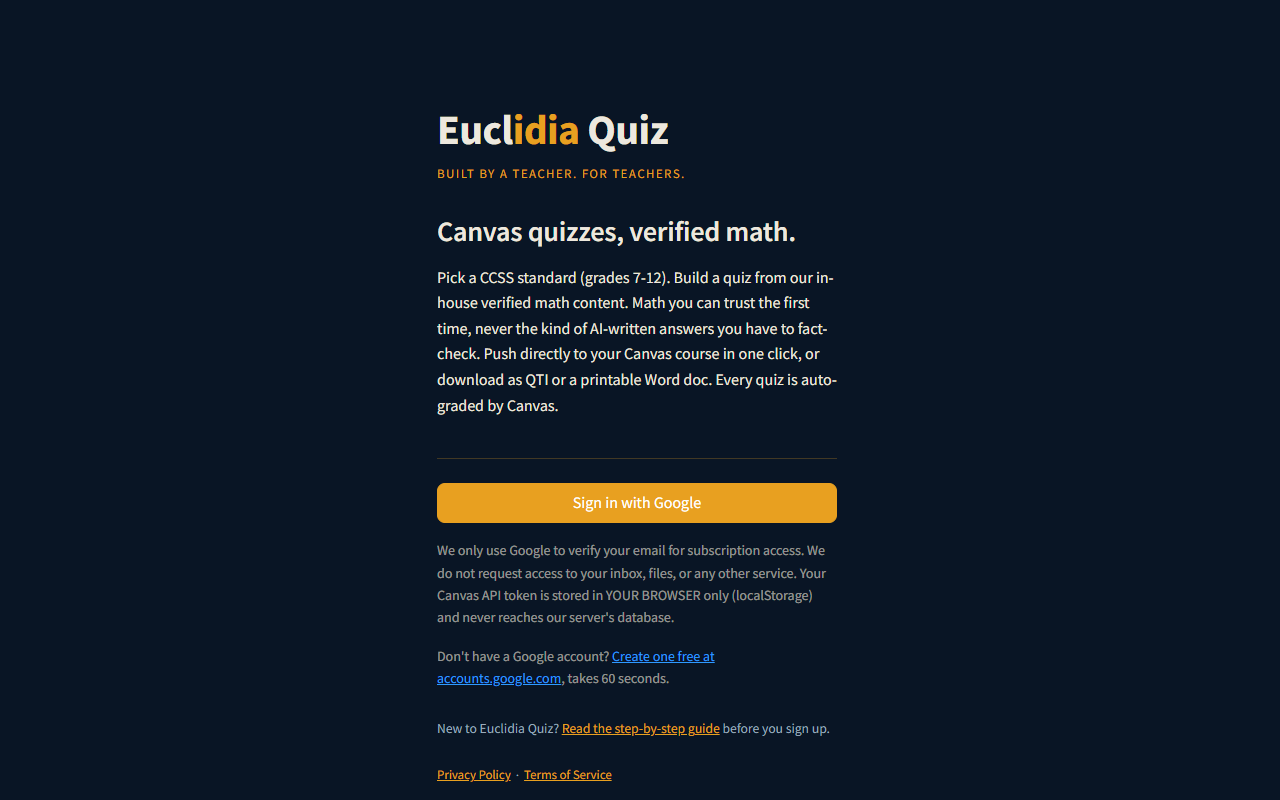
Only your email address. We do not see your inbox, your Drive files, your calendar, or anything else in your Google account. We ask for your email only to know who is signed in.
Start your 3-day free trial.
After you sign in, you will see a page that asks you to pick a plan.
- Monthly is $6.99 per month after the free trial.
- Annual is $59.99 per year after the free trial (works out to about $5 per month).
Either way, you get 3 days free. You can cancel before day 3 and you will not be charged.
Click one of the Start trial buttons. Stripe (a trusted payment company) will open a checkout page. Type in your card details and click Subscribe.
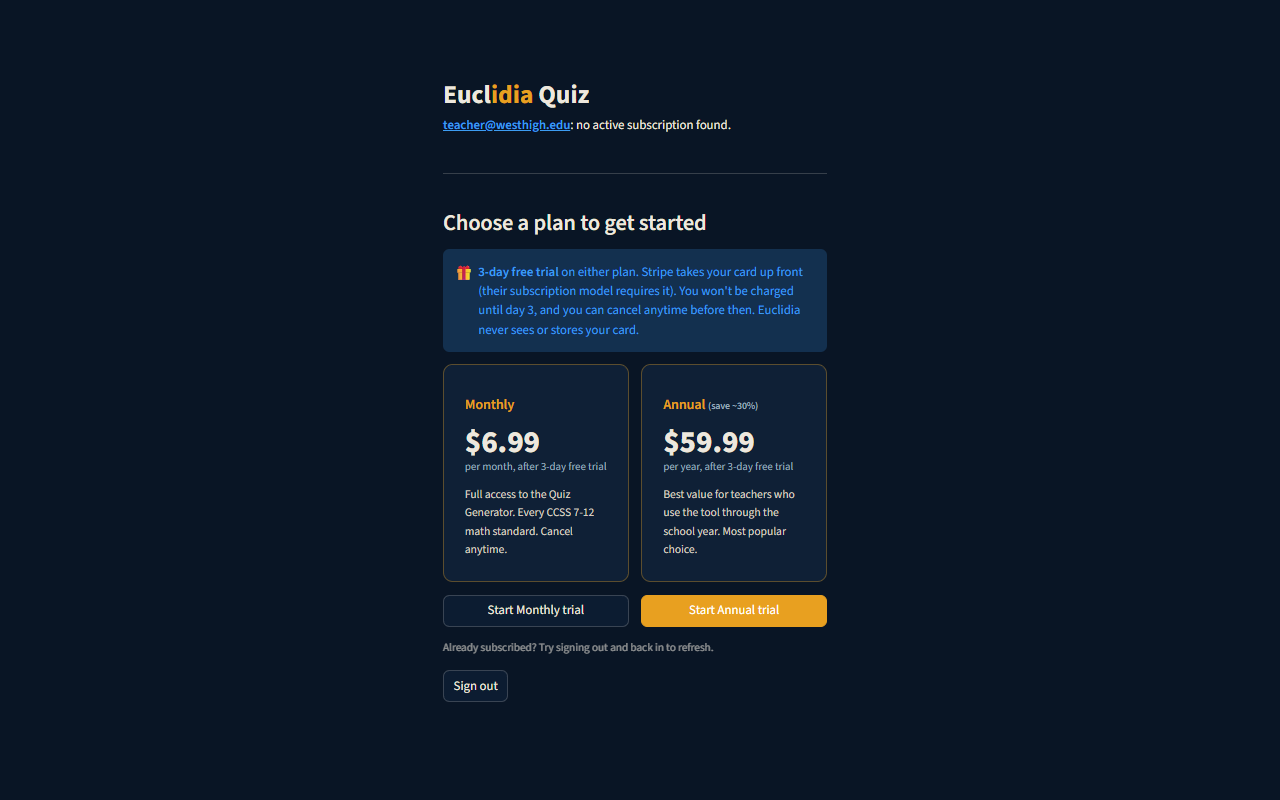
Stripe holds your card, not Euclidia. We never see or store your card number. Stripe requires a card on file so that, if you decide to keep going after the 3 days, the subscription continues without you having to do anything.
Click the Manage subscription button in the Euclidia Quiz sidebar at any time. That opens your personal Stripe billing page where you can cancel in one click. No emails, no phone calls.
Connect Canvas (optional).
Skip this step if you do not use Canvas, or if you are happy to upload your quiz to Canvas yourself instead of having Euclidia push it for you. You can still build quizzes and use them.
If you do want one-click push into your Canvas course, here is how to connect.
Get a Canvas access token
In a new browser tab, log into your school's Canvas.
- In Canvas, click on your Account icon in the very left sidebar (it usually has your photo or initials).
- Click Settings.
- Scroll all the way down until you see a section called Approved Integrations.
- Click the + New Access Token button.
- In the Purpose box, type something like Euclidia Quiz. You can leave the Expires box blank.
- Click Generate Token.
- Canvas will show you a long string of letters and numbers. Copy that whole string. This is your token.
Canvas keeps a fully illustrated walkthrough of these same steps with screenshots from the live Canvas interface: Canvas: How do I manage API access tokens in my user account? Open it in a new tab if you want to follow along with pictures.
Canvas only shows you that token one time. If you close the window before copying it, you have to make a new one. No problem. It just takes another 30 seconds.
Paste it into Euclidia Quiz
- Go back to your Euclidia Quiz tab.
- On the Welcome page, click Open Canvas Settings.
- In the Canvas URL box, type the address of your school's Canvas (it usually looks like
https://yourschool.instructure.com). You can copy this from your browser when you are logged into Canvas. The app will often guess this for you based on your email. - In the Canvas API Token box, paste the long string you copied from Canvas.
- (Optional) In the Default Course ID box, you can paste a course number if you usually push quizzes to the same class. You can find this number in the Canvas URL when you visit the course, after
/courses/. - Click Save.
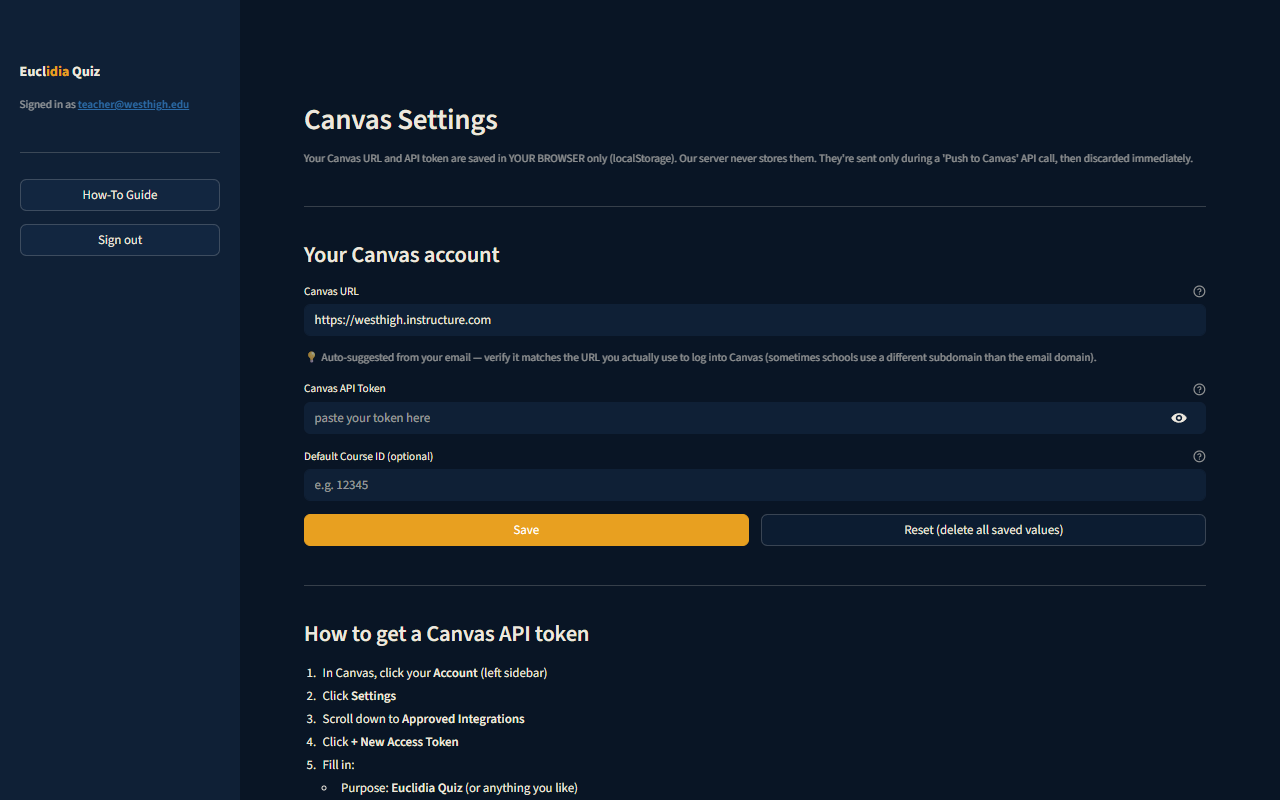
Your token is saved only in your own browser. It is never sent to our servers and we cannot see it. If you sign out, or click Reset (delete all saved values), your token is wiped from your browser. You can also revoke it in Canvas at any time under the same Approved Integrations area.
Build your first quiz.
Back on the Welcome page, click Open Quiz Builder.
- At the top, type a Quiz title (for example, "Pythagorean Theorem Practice").
- Slide the Questions per topic slider left or right. Most teachers pick 5 or 10.
- Pick a Difficulty from the dropdown.
- In Pick topics, either:
- Pick a Grade from the dropdown to narrow the list, or
- Pick a specific CCSS standard if you know which one you want, or
- Just scroll through and pick topics by name.
- Click on one or more topics. Each one you pick will show as a tag.
- Choose Multiple Choice or Fill in the Blank (Fill in the Blank only works for topics that have a single numeric answer, like Pythagorean Theorem).
- Click the gold Build quiz button.
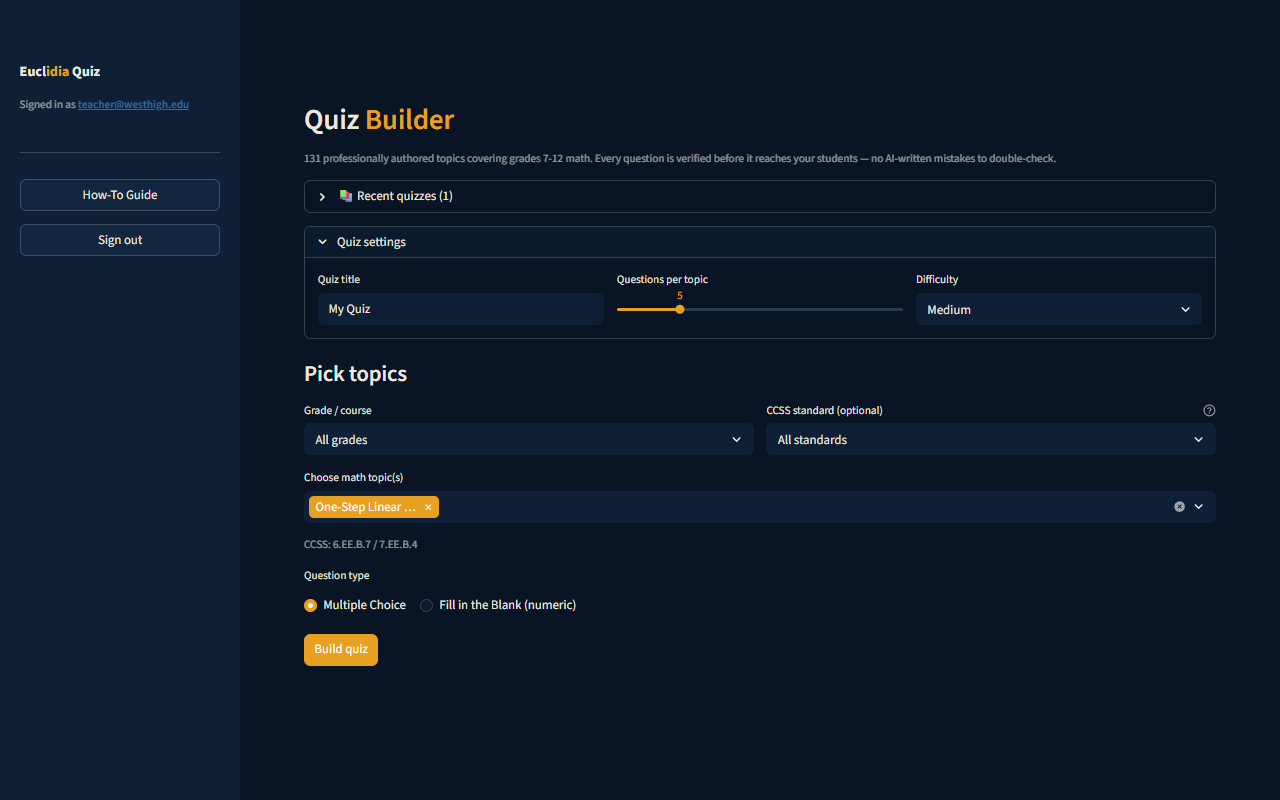
The questions appear right below. You can click any question to expand it and see the answer choices and the explanation.
You can click the small refresh icon on the question to swap it for a new one without rebuilding the whole quiz.
Send the quiz to your students.
Scroll down past the preview to the Export section. You have three ways to deliver your quiz. Pick whichever fits your classroom.
Classic Quiz is ready right after the QTI upload. If you want to switch the imported quiz to Canvas's New Quizzes format, Canvas has a quirk: after importing, you need to open each question, click Edit question, then click Save without changing anything. Skip that step and the conversion strips the question data. This is a Canvas bug, not ours. The simpler path is to either (a) keep it as a Classic Quiz, which works out of the box, or (b) use the one-click push (Option A), which avoids the whole issue.
Troubleshooting and common questions.
I clicked Push to Canvas and got an error.
Three things to check, in this order. (1) Is your Canvas token correct? Go to Canvas Settings and paste it again. (2) Is your Canvas URL correct? It should look like https://yourschool.instructure.com with no slash at the end. (3) Is your Course ID right? You can find it in the Canvas URL when you visit the course. If all three look right and it still fails, email us.
My quiz looks weird after I converted it to New Quizzes.
If you imported as a QTI file and then converted to New Quizzes, Canvas has a bug that strips the question data unless you first open each question, click Edit question, and click Save without changing anything. Do that for every question and the conversion will take. If you only need a Classic Quiz (which works fine for almost every gradebook), skip the conversion. The simpler path overall is the one-click push (Option A in Step 5), which avoids the issue entirely. If it is still wrong after the Edit and Save steps, email us with a screenshot.
I do not see my Canvas course in the dropdown.
You type the Course ID in by hand, not pick it from a dropdown. To find the ID, log into Canvas, click on your course, and look at the address bar. After /courses/ you will see a number. That is your Course ID.
I want to cancel before day 3. How?
Click the Manage subscription button in the Euclidia Quiz sidebar. It opens your personal Stripe billing page. Click Cancel subscription. Done. You will not be charged.
I signed up but did not get a confirmation email.
Stripe sends a receipt email after the first charge on day 3, not when you start the trial. If you want a record of the trial start, you can take a screenshot of the "Choose a plan" page after subscribing. We do not send any other emails.
Is this safe for student data?
Yes. We never see your students. The only data we ever hold is your email address. Quiz answers, student names, grades, and submissions all live in your Canvas, not in our system. Your Canvas token stays in your browser only. We do not run a database.
Can I use this without Canvas?
Yes. Skip Step 3 entirely. Build a quiz in Step 4, then use Option B (download a QTI file for Schoology, Blackboard, or any other system) or Option C (print the Word doc) in Step 5.
Still stuck?
If something in this guide does not match what you are seeing, or you run into a problem we did not cover, email euclidiamath@gmail.com. We answer every message personally, usually within a day.
Go to Euclidia Quiz